Manual · ET Drive 500 / 600
ET gate motor manual: Drive 500 and Drive 600
The ET Drive 500 and Drive 600 both move sliding gates up to 500 kg. This is their manual in plain English: how to set the limits, add and delete remotes, read the status light, reset the controller and code the older ET 500, with ET's own PDFs at the end.
Six-month guarantee on our repairs
Which ET motor is on your gate?
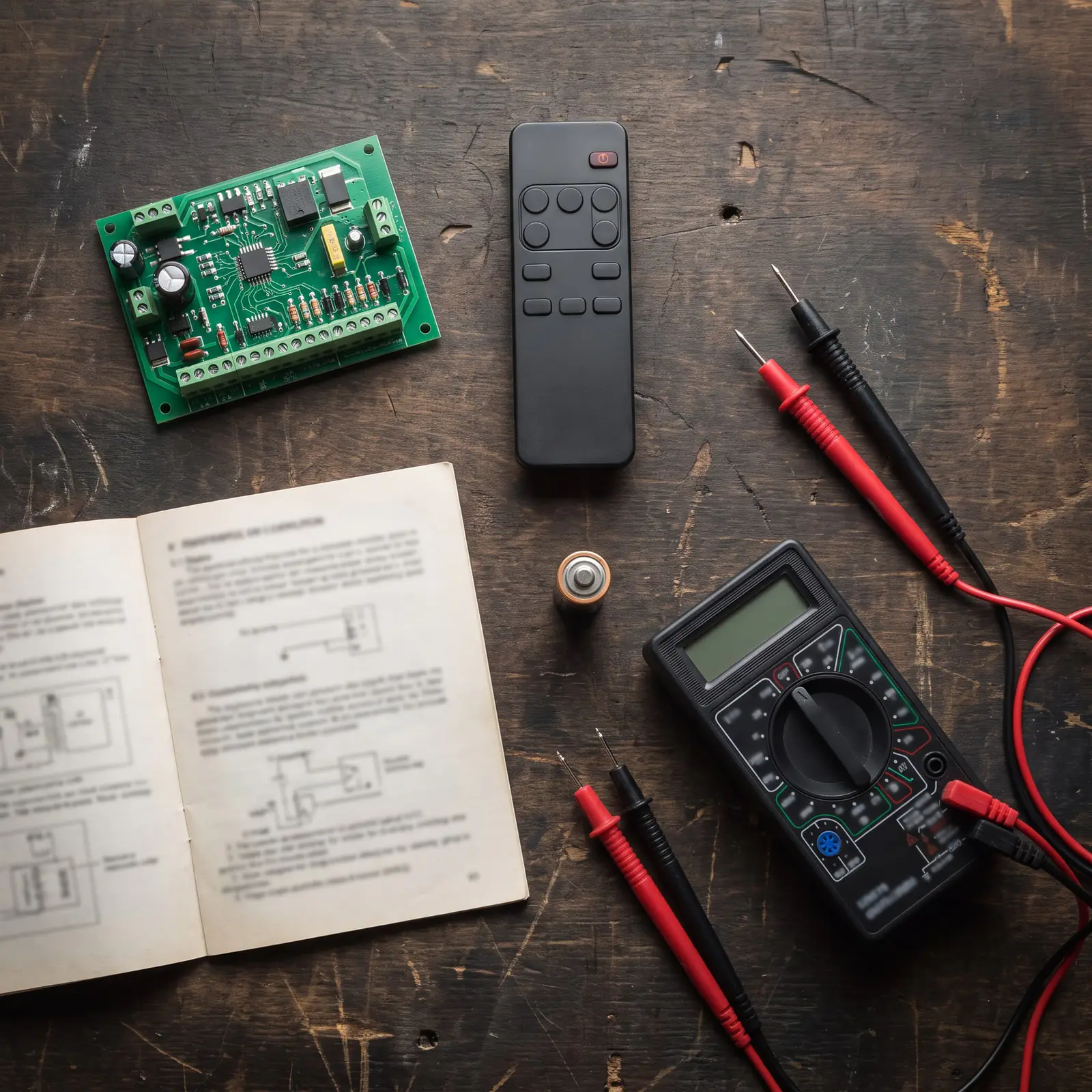
ET (now part of the Nice group) makes several sliding gate motors, and the steps here fit the Drive 500 and Drive 600. Under the motor's cover, the Drive series has a small backlit display with keys beside it, and the model is on the label.
- Drive 500: sliding gates up to 500 kg, made for low-traffic homes. The motor runs off its battery, which a plug-in transformer keeps charged.
- Drive 600: the same 500 kg rating, built for high traffic. It runs off a mains power supply at the gate, with the battery as backup.
- Drive 300: gates up to 300 kg. Its menus differ in places, so it has its own ET Drive 300 manual page.
- Drive 1000: gates up to 1,000 kg, for heavy, busy gates. It has its own manual page.
- ET 500 and ET 500 Plus: the older motors with no display. Remotes are coded with pins on the receiver, covered further down.
ET's garage door motors are the DC Blue range: see the DC Blue manual. Every other manual we explain is in our manual library.
Drive 500 and Drive 600 compared
The two share a gearbox, a control card and a 500 kg rating. The difference is power: the battery-driven Drive 500 suits a home, while the mains-powered Drive 600 can run almost non-stop at complexes and busy entrances.
| Drive 500 | Drive 600 | |
|---|---|---|
| Traffic | Low (homes) | High (complexes, businesses) |
| Gate mass | Up to 500 kg | Up to 500 kg |
| Power supply | 16 V AC from a plug-in transformer | 220 to 240 V AC at the motor |
| Peak power | 26 W | 240 W |
| Duty cycle | 25% | 98% |
| Gate speed | Up to 28 m per minute | Up to 30 m per minute |
| In a power cut | About 100 openings in 24 hours | About 100 openings in 24 hours |
| Remote memory | 1,023 users | 1,023 users |
Both have a 12 V DC motor, a 7 Ah battery, a 4-channel receiver at 433.92 MHz, gate travel up to 99 m and an IPX4 weather rating. ET's battery figure is for a 5 m gate that rolls freely; a long or stiff gate gets fewer openings.
Duty cycle is the share of time the motor can spend running. At 25%, a Drive 500 on a gate that takes 17 seconds to open needs about 51 seconds' rest after each run, so a gate that opens dozens of times an hour is a Drive 600 job.
Moving the gate by hand
With a flat battery in a power cut, or while a technician is on the way, you can release the motor and slide the gate yourself, using the motor's key.
- Lift the small lock cover on the motor.
- Put the key in and turn it clockwise.
- Swing the release lever out through 90 degrees, towards the gearbox.
- Slide the gate by hand.
To lock it back:
- Swing the lever back into its recess.
- Turn the key anticlockwise, take it out and close the lock cover.
- Push or pull the gate a little until you feel the gears click back in.
If the gate is hard to push with the motor released, the problem is the gate itself (a seized wheel, a bent track, a dropped guide roller), not the motor. ET asks that a gate pulls open with no more than 40 kgf to start it moving and 30 kgf once it's rolling.
The display and keys
Everything on a Drive is set from the control card under the motor cover, held by four Phillips screws. Beside the display are left and right arrows to move through menus and change values, an enter key that opens the menu and saves, an exit key that steps back without saving, and a test key that runs the gate like a remote (in a menu, it returns to standby without saving).
To open the programming menu, press and hold the enter key until the buzzer beeps. Pressing either arrow from standby opens the diagnostics screen instead, which shows the battery, the charger and the supply live.
On a Drive 600, mains power comes into the motor. Leave the wiring and the terminal cover alone, and if you're not comfortable working inside the motor at all, we'll do the programming for you.
Setting the limits: run-time setup
The Drive learns where the gate opens and closes in one routine, run-time setup, done on every new installation and again whenever the display says "Gate re-profile required". Before you start, the limit actuator (the small block fixed to the rack) must already be in place, and the gate should be about halfway open.
- Hold the enter key until the beep, then use the arrows to find "Run-time setup" and press enter.
- If the gate is closed, the display asks you to move it midway: release the motor, push the gate halfway and lock the motor back in.
- The display asks which way the gate closes. Press the left or the right arrow to match.
- The gate creeps closed until the limit switch sees the actuator, then starts opening.
- Press enter where you want the gate to stop open. Fine-tune with the arrows and press enter again.
- The gate closes slowly to check its length, the buzzer warns that profiling is about to start, and it runs open and closed at full speed.
- The display shows "Limits set". You're done.
Holding either arrow during the slow runs speeds the gate up. The limit LED on the card must come on before the gate reaches its closed stopper; positive close mode, in the advanced menu, then pushes the gate onto the stopper for an electric lock or fence contact.
Adding ET remotes
The Drive's receiver takes ET BLU MIX remotes and the older ET BLUE ones, up to 1,023 users. The gate can be in any position while you code.
- Hold the enter key until the beep and scroll to "Receiver Setup". Press enter.
- With "Quick learn" showing, press enter.
- Choose what the button should do: BT (full opening), pedestrian opening, auxiliary relay or holiday lock-out.
- Hold the remote button down, and while it's still transmitting, press and release enter.
- The buzzer beeps twice and the display shows the remote's user number. Let go of the remote button.
Repeat steps 4 and 5 for each remote. "Corresponding" in step 3 codes all four buttons of one remote in a single go, each to its own channel (ET's manual shows which button lands where). All four buttons must be set to the same code format for that to work, and a remote with mixed formats takes two user numbers.
"Advanced learn" lets you pick the user number, handy for keeping a list of who has which remote. "Diagnose Remotes" shows whether a remote is in the memory, its user number and function, and its signal strength: the quickest way to tell a dead remote from one that isn't coded.
Deleting a lost remote or clearing the memory
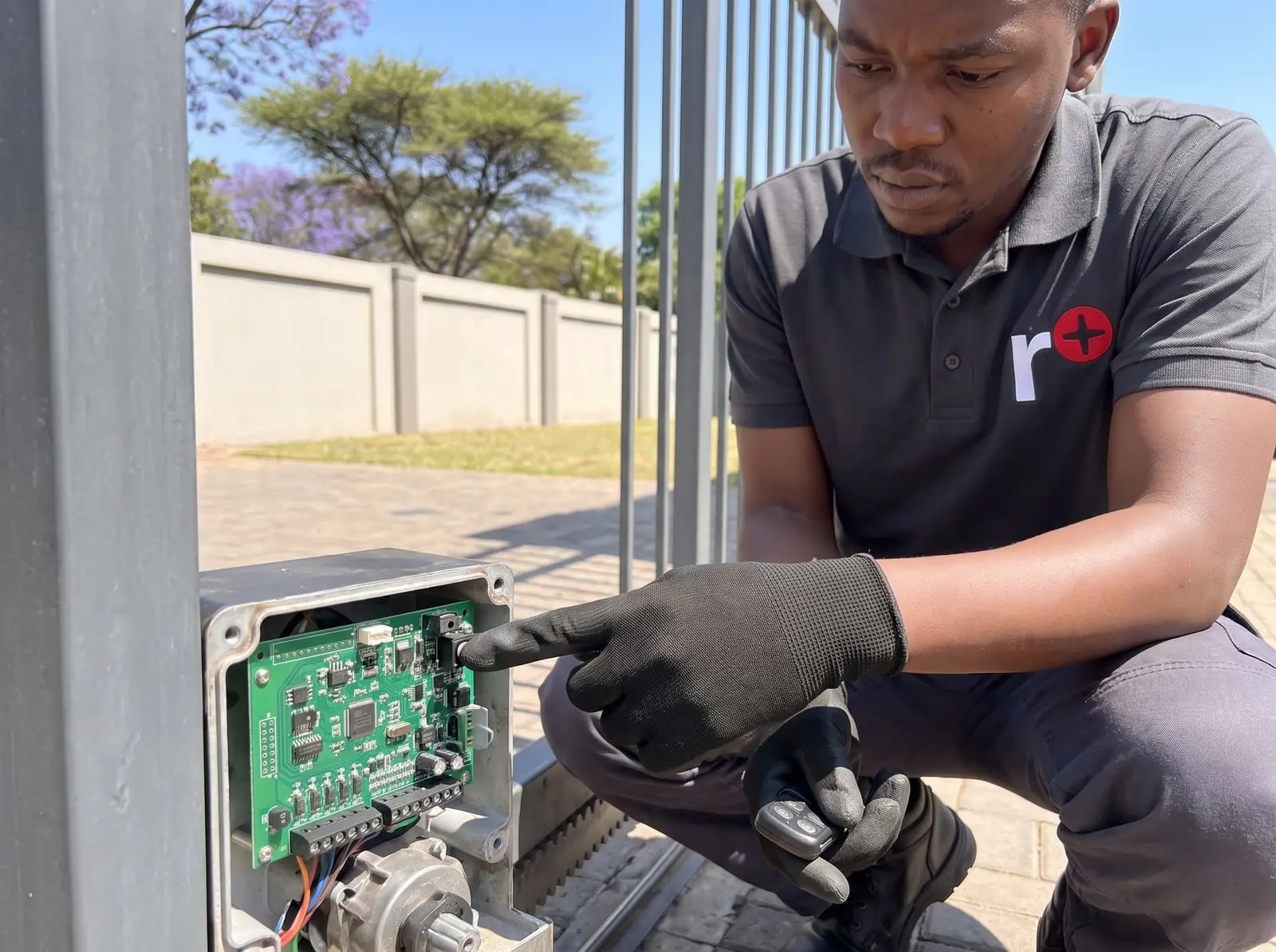
Delete a lost remote so it can't open the gate: in "Receiver Setup", choose "Erase remotes", then "Select Address", scroll to its user number and press enter.
To wipe every remote, choose "Erase ALL memory", hold enter and, when asked, the right arrow too. Keep both held while the buzzer beeps (letting go cancels); when it goes quiet, the erase starts. Then code back only the remotes you trust.
"Receiver info" shows how full the memory is, for example "used: 12 of 1023".
Older ET 500 and 500 Plus: coding remotes on the receiver
The ET 500 and ET 500 Plus have no display. Remotes are learnt on the receiver board, which has three programming pins and an RX light: the pin nearest the gate is BT (full opening), the middle one programs, and the furthest is pedestrian.
- Hold down the remote button you want to code. The RX light flickers.
- Bridge the middle pin to the BT pin (or to the pedestrian pin for a pedestrian button) until the RX light flashes.
- Watch the RX light: one flash means the first remote is learnt, two flashes mean it worked and there's room for more, rapid flashing means the memory is full.
- Remove the bridge, then let go of the remote. In standby the RX light stays on.
The BT side holds 25 remotes and the pedestrian side 6. Both ET BLUE and ET BLU MIX remotes work, but if the chip on the receiver has no © mark, a BLU MIX remote must be set to the old ET Blue code first.
This is done with the cover off, next to the motor's power connections. If any part of it looks unfamiliar, stop: we code remotes on every visit.
What the status light and buzzer mean
The status light on the Drive tells you what the gate is doing and, when something's wrong, what kind of wrong. Here are the six patterns from ET's user manual, each blinking at its real timing.
| Light | Pattern | What it means | Buzzer | One cycle |
|---|---|---|---|---|
| Off | The gate is fully closed. | None | 2 s | |
| Slow flash, 1 second on and 1 off | The gate is running normally. | None | 2 s | |
| On, steady | The gate is open. | None | 2 s | |
| 2 flashes, then a 2-second pause | The mains power is off. Restore it as soon as you can. | One 1-second beep every 15 seconds, for 5 minutes after the gate last moved | 4 s | |
| 4 flashes, then a 2-second pause | The battery is low. Give it 8 to 10 hours of unbroken charging before checking again. | None | 6 s | |
| 5 rapid flashes when triggered | A lock-out is on. Press any holiday lock-out button, then any BT button, to switch it off. | Copies the light | 1.25 s |
Battery, power cuts and the diagnostics screen
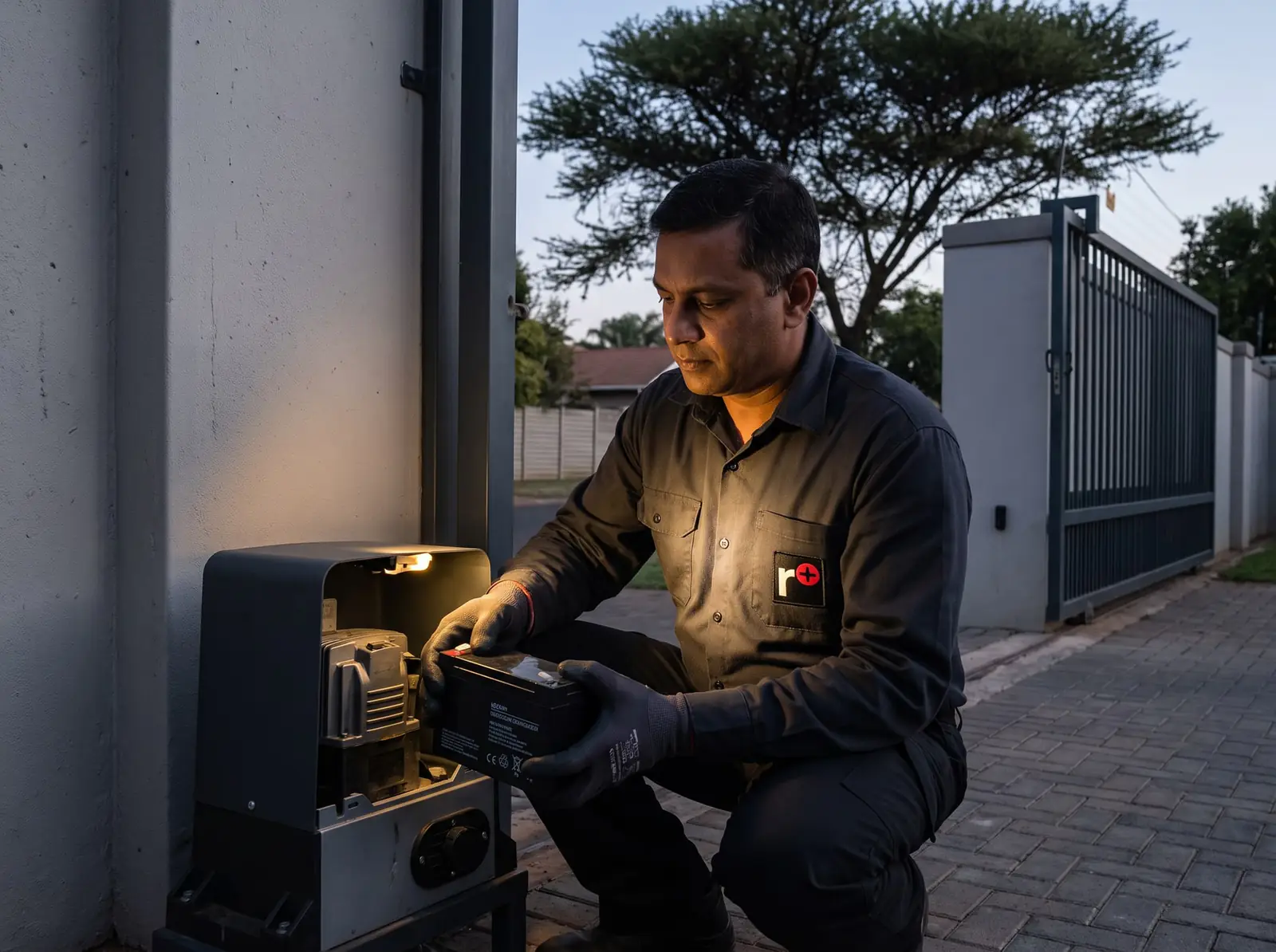
A Drive keeps working through load-shedding on its battery: ET rates both models at about 100 openings in 24 hours on the standard 7 Ah battery, if it's healthy and charged when the power goes. An old battery, or one that hasn't had time to recharge between outages, won't last a long one.
The diagnostics screen (either arrow, from standby) shows the battery voltage and what the charger is doing:
- Bulk Charge, Topup Charge, Float Charge: the charger's three stages, from flat to full. Float means the battery is full and being maintained.
- Supply: the battery is powering the gate, usually because the mains is off.
- Removed: no battery is connected.
- Short: there's a short across the battery terminals: a faulty battery or wiring.
- Check Supply: the power reaching the charger is too low. On a Drive 500 the transformer's 16 V should read between 16 and 19 V.
If the light still gives four flashes after 8 to 10 hours of unbroken charging, or the battery dies within a few openings in a power cut, it's due for replacement. We test and replace them: see gate motor batteries.
Gate modes, holiday lock-out and party mode
How the gate answers a remote is set under "BT Mode Setting". Out of the box it's standard mode, and there are four more:
- Standard: one press opens the gate and the next closes it. A press while it's opening stops it; a press while it's closing sends it back open.
- Auto-close: like standard, but the gate closes on its own after a set time. ET's default is 15 seconds, adjustable from 1 to 254.
- CONDO: every press opens the gate or keeps it open, and only the timer closes it, so one resident can't shut the gate on another's car.
- P.I.R.A.C.: auto-close that reacts to the beams. Once a car has driven through, the gate closes behind it.
- P.I.R.A.C.-CONDO: the two combined.
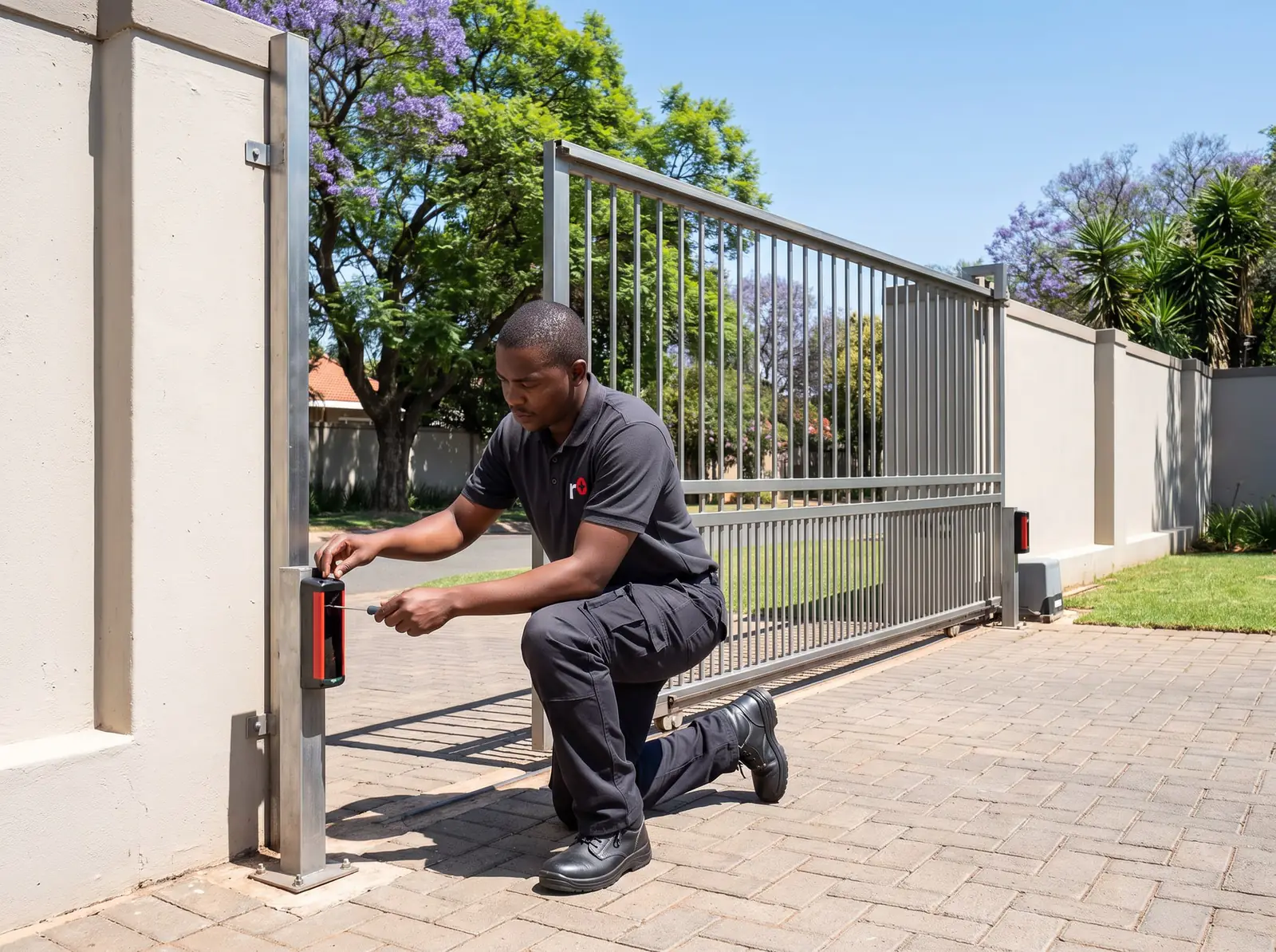
Any mode with automatic closing needs a working pair of safety beams; without them the gate opens but won't close again by itself. The pedestrian opening is set separately: ET's default is 1 m, closing again after 2 seconds once beams are fitted.
Holiday lock-out, on its own remote button, keeps a closed gate shut for everyone while you're away. Party mode holds the gate open. Neither works in CONDO mode, and while either is on, a remote press only makes the motor beep.
Beams, alarms and lock-outs
The Drive watches for tampering through its alarm output, usually wired to a light or a zone on the house alarm:
- Beam tamper: if the gate is closed and the beams are blocked for more than 20 seconds, the alarm output switches on. ET's advice if you see it on the way home: don't open the gate. Drive on to your armed response point or the nearest police station and ask for an escort in.
- Gate forced open: if someone lifts the gate off its track, the alarm comes on at once and stays on until the gate is closed and secure again.
- Gate kept open too long: an optional alarm when the gate is held open past a set time.
On a collision the gate stops: while opening it backs off slightly and waits, while closing it opens fully again. After more than four collisions in a row, the Drive locks out for 10 seconds ("Collision Lckout"). If that keeps happening with nothing in the way, the gate is dragging somewhere and needs a look.
Fault messages on the display
The Drive names its faults in words, and "Controller info" keeps logs of the last 30 faults and triggers, with a count of every run since it left the factory. The messages fall into families: overloads and stalls, battery and supply errors, beam and receiver errors, and learning errors from an unfinished run-time setup.
What each one means and what to do about it is on our ET Drive 500 fault messages page, which also covers ET's installation checks. If the light or the buzzer is the only clue, start with what a beeping gate motor is telling you.
Reset and restore
The last item in the advanced menu, "Reset and Restore", has four options:
- Set restore point saves the controller's current settings.
- Restore settings goes back to the last restore point: set one after a good installation, as a safe way back.
- Clear logs empties the event, fault and trigger logs.
- Factory reset puts every controller setting back to ET's defaults.
A factory reset doesn't clear the remotes from the receiver, and the cycle count can't be reset at all. After one, the display reports "Factory Reset" and the gate has to be set up again: run-time setup, then the beams, the mode and anything else that had been changed. To clear the remotes too, use "Erase ALL memory" (above).
The advanced menu can also lock the programming menus behind a PIN code, which keeps curious fingers out of the settings.
Replacing an old ET with a Drive 500
When an ET 500 or an early Drive is beyond economic repair, the Drive 500 is the natural replacement: it fits the same kind of gate, and the receiver takes ET BLUE and ET BLU MIX remotes, so working ET remotes can usually be coded across instead of replaced. Our ET Drive 500 sliding gate kit is R6 999 installed. Prices checked October 2026.
A gate over 500 kg needs the 1,000 kg Drive 1000, and a busy one the Drive 600: we'll quote whichever your gate needs. Your exact price is set in a free quote before any work starts. No call-out fee when we do the work. If no work is done, a R650 call-out fee applies.
Sliding gate kit
ET Drive 500 sliding gate kit
R6 999incl. installation
In the kit
- Drive 500 (gates up to 500 kg)
- 12 V 7 Ah battery
- 4 m steel rack
- 2 × 4-button ET remotes
Our promise1-year guarantee on every motor kit we supply and install
Prices checked October 2026. Price includes the kit listed, standard installation on a gate or door that already runs freely, and our 1-year kit guarantee. Not included: a power point at the motor if there isn't one (a job for a registered electrician), extra rack, gate or door repairs, and accessories. These are quoted before any work starts.
When to call us
Call us when the gate still misbehaves after these checks, when the display shows a fault you can't clear, or when the gate stops short of its limits or runs past them. We repair ET motors: gearboxes, control cards, chargers, receivers, limit switches, racks and batteries. All our spare parts are genuine, and every repair carries our six-month guarantee on our repairs.
Drive motors made from 1 March 2024 also carry a two-year manufacturer's warranty from Nice, if the gate was professionally installed and is serviced at least every 12 months at a home (every 6 months at a business). The battery isn't covered, and a claim goes through your installer with the invoice and service records.
ET's own documents are a free download from Nice Group South Africa's website, as official PDFs:
Questions
ET Drive 500 questions
How to reset an ET500 gate motor?
If the gate ignores every remote and the status light gives five quick flashes at each press, nothing is broken: a lock-out is on. Press the holiday lock-out button on any remote, then any BT button. Resetting the settings is different: that's the Drive's Reset and Restore menu, which the older ET 500 without a display doesn't have. See how Reset and Restore works.
How to program ET drive 500 gate motor?
Program it in this order: the limits first (run-time setup), then the safety beams, the BT mode and auto-close time, the pedestrian opening, and finally the remotes. All of them are in the programming menu (hold the enter key until the beep). The limits must come first: the pedestrian setup can't be done before them, and the gate's overload sensing is learnt during that same run. Start with run-time setup.
How to factory reset ET 500 gate motor?
On a Drive 500, open the programming menu, go to the advanced menu, choose Reset and Restore and then Factory reset. Every controller setting goes back to ET's defaults, but the remotes stay in the receiver and the cycle count is untouched, so afterwards you redo run-time setup and any modes you'd changed. If you only want to undo a recent change, Restore settings is gentler. Read about the four reset options.
How do I program an ET remote to an ET 500 gate motor?
On the older ET 500 or 500 Plus, hold the remote button and bridge the receiver's middle programming pin to the BT pin, the one nearest the gate, until the RX light flashes. One flash means it's the first remote, two mean it worked with room to spare, and rapid flashing means the 25-remote memory is full. It's done with the cover off, near the power connections, so we're happy to do it. See the full receiver method.
How to reset ET Drive 500 gate motor?
Start with what the display says. "Collision Lckout" clears itself after 10 seconds once nothing is in the way; "Gate re-profile required" means redo run-time setup; and Restore settings returns the controller to its last restore point without a full factory reset. A blank display means checking the mains and battery first. Book a technician if it won't come right.
What is the price of an ET Drive 500 gate motor?
Our ET Drive 500 sliding gate kit is R6 999 installed, with a 12 V 7 Ah battery, 4 m of steel rack and two 4-button ET remotes (prices checked October 2026). A heavier or busier gate may need a Drive 600 or Drive 1000, and the kit card above lists what's quoted separately. Ask for a quote for your gate.
How to program ET500 gate motor?
First check which one you have. A control card with a display is a Drive 500, set up from its menu. No display means the older ET 500 or 500 Plus, where the only owner programming ET describes is coding remotes on the receiver pins; the rest is a technician's job. Find out which ET you have.
How do I program a remote to my Drive 500 gate motor?
Use Quick learn: hold the enter key until the beep, go to Receiver Setup, then Quick learn, pick BT for full opening, and press enter while holding the remote button down. Two beeps and a user number mean it's coded; the receiver holds 1,023. If a remote won't code, Diagnose Remotes shows whether its signal arrives. See every remote option.
Book a technician
Get a gate motor quote
Job card
We WhatsApp or call you back. Fields marked (required) are needed.