Guides · CCTV
Cannot view CCTV on your phone? Getting the app working again
Watching your cameras from your phone depends on a chain that has nothing to do with the cameras: the recorder at home has to be connected to the internet, and the app on your phone has to be linked to that recorder. When the app says offline or won't load, one of those links has broken, and the cameras are almost always fine. Here's how to find which link, and fix it.
Six-month guarantee on our repairs
How phone viewing works
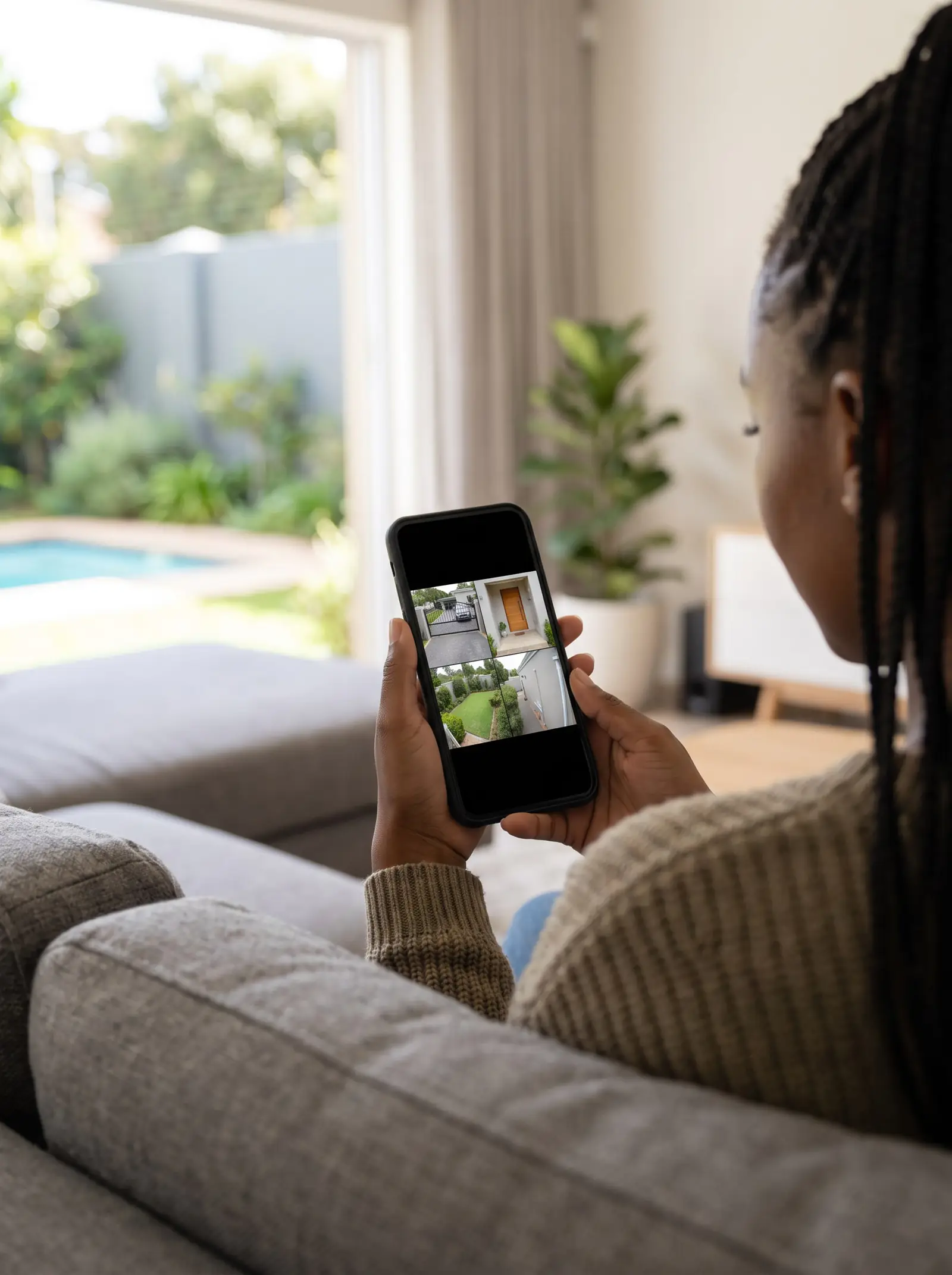
Your cameras send their pictures to the recorder (a DVR or NVR) at home. The recorder connects to your router, and through it to the internet. The app on your phone, Hik-Connect for Hikvision and HiLook systems or Dahua's own app for Dahua, connects to the recorder over the internet, using the account it was linked to. So there are four links:
- Cameras to recorder
- Recorder to router
- Router to internet
- App to recorder, through your login
The first test splits them neatly: can you see the cameras on the recorder's own monitor or TV at home? If yes, the cameras and recorder are fine, and the problem is in links 2 to 4.
Why it suddenly stopped
In order of how often we find them:
- A new router. Internet providers often swap routers, and the recorder was linked to the old one. The new router may have a different network, so the recorder is no longer online.
- A changed Wi-Fi password, on recorders connected by Wi-Fi rather than cable.
- The recorder's network cable came out, or the recorder was moved during a renovation or a move.
- The internet is down at home, or the data or fibre account has lapsed.
- The app's login has expired, the app was reinstalled, or you're on a new phone and signed in to a different account.
- The recorder was reset or replaced, and is no longer linked to the account.
If it worked last week, think about what changed at home since: that's usually the answer.
Checks you can do
- Check the cameras at home, on the recorder's monitor. If they're blank there too, see CCTV camera not showing on DVR.
- Check the home internet works on another device.
- Check the recorder's network cable is plugged into the router, with its lights on at both ends.
- Restart the router, then wait a few minutes before trying the app.
- Sign out of the app and back in, with the account the system was set up on.
- Try on mobile data, not your home Wi-Fi, to see what you'll see away from home.
If the cameras show at home, the internet works and the recorder is plugged into the router, but the app still says offline, the recorder needs re-linking to the router or the app. That's done from the recorder's settings with its admin login.
Setting phone viewing up properly
When we set up or re-link a system, we:
- connect the recorder to the router by cable wherever possible, which is more dependable than Wi-Fi;
- link the recorder to the app account of the owner, and share access with others from there;
- give each person their own login with only the cameras they need, rather than sharing the admin password;
- change default passwords and update the recorder's firmware;
- avoid exposing the recorder directly to the internet, which leaves it open to anyone who finds it;
- test it on mobile data before we leave.
Lost the password?
If nobody remembers the recorder's admin password, phone viewing can't be re-linked until access is recovered. Recorders don't have a universal back-door password, and reset methods depend on the model and how it was set up; some erase settings. We recover access on site once we've confirmed the system is yours. More on Hikvision and Dahua.
It connects, but it's slow or keeps dropping
- The home upload speed is low. Phone viewing sends video out of your home, which depends on upload speed, often much lower than download.
- Weak Wi-Fi to a recorder that isn't on a cable.
- Too many cameras at full quality at once. Most apps can show a lower-quality stream on mobile.
- A busy network at home, with streaming and work calls competing.
Sharing access with family, staff or a security company
Phone viewing works best when everyone who needs it has their own access rather than one shared login. Most apps let the owner's account share the recorder with others, and the recorder itself can hold separate users with limited rights:
- Family members can see every camera, but usually don't need to change settings.
- A domestic worker or a manager may only need the gate or the front door camera.
- An armed response or monitoring company may want live access to specific cameras when an alarm goes off.
When someone leaves, removing their access takes a minute and doesn't disturb anyone else's, which is the reason to set it up this way. Sharing the admin password does the opposite: anyone who has it can change or delete everything.
When to call us
Call us when the cameras show at home but not on your phone after the checks above, when you don't have the admin login, or when you'd like access set up for several people. We reconnect recorders, set up apps and logins, and secure the system. Every repair carries our six-month guarantee on our repairs. No call-out fee when we do the work. If no work is done, a R650 call-out fee applies. More on CCTV repairs.
Questions
Questions about viewing CCTV on a phone
How can I view CCTV on my phone?
The recorder at home must be online through your router and linked to the maker's app on your phone: Hik-Connect for Hikvision and HiLook, or Dahua's own app. Once linked, you can see live cameras and playback anywhere with signal. See how it works.
Why can't I view my security cameras remotely?
Usually something changed at home: a new router, a changed Wi-Fi password, the recorder unplugged from the router, or an expired app login. If the cameras show on the recorder's own screen, they're fine. See why it stopped.
Why does my CCTV app work at home but not away from home?
At home the app may be reaching the recorder over your Wi-Fi; away from home it needs the recorder linked through the internet. Testing on mobile data shows what you'll get when you're out. See the checks.
Book a technician
Get a CCTV quote
Job card
We WhatsApp or call you back. Fields marked (required) are needed.