Manual · Centurion SDO4
Centurion SDO4 SMART programming: remotes and the wall switch
Adding a remote to a Centurion SDO4 garage motor takes a minute once you know which SDO4 you have. The SDO4 SMART learns remotes and its wireless wall switch in Centurion's MyCentsys Pro app; the original SDO4 learns them from the buttons and display on its motor-head. Here are both, step by step from Centurion's manuals, with what each button can be set to do and how to start again from scratch.
Six-month guarantee on our repairs
Which SDO4 do you have?
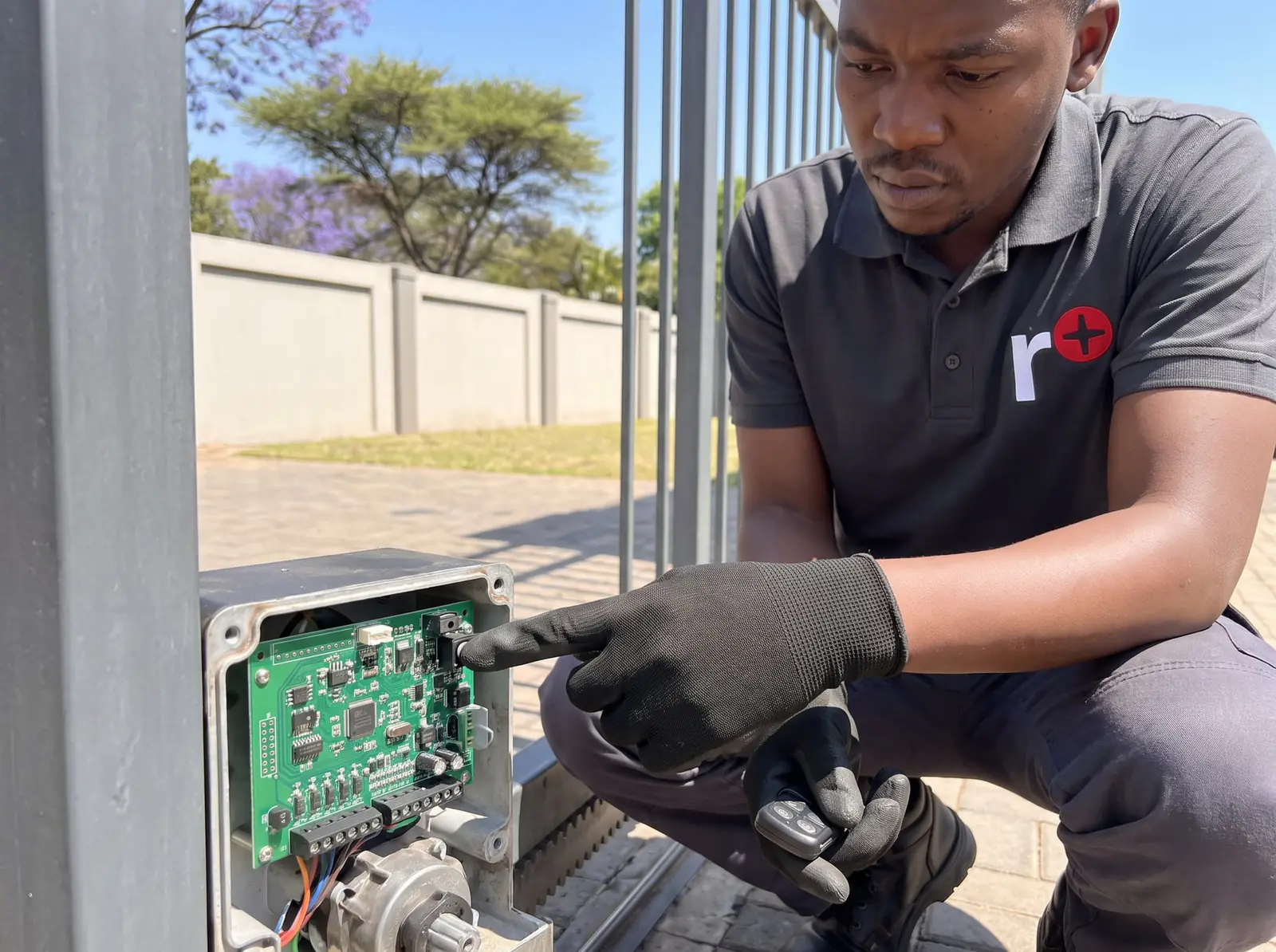
Look at the label on the motor-head. If it says SMART, it's the belt-driven SDO4 SMART and its remotes are programmed in the app. If it doesn't, and there's a small two-character display with four coloured buttons (yellow +, blue −, red Learn and green Confirm), it's the original SDO4, programmed at the motor. How to tell them apart in more detail is on the Centurion SDO4 manual.
Both store up to 20 four-button remotes, and both work with Centurion's code-hopping remotes; the SMART's receiver is Centurion's NOVA type.
SDO4 SMART: remotes and the wall switch in the app
On the SDO4 SMART, remotes and the wireless wall switch are added in MyCentsys Pro, the installer's app, under Remotes at the bottom of the screen. The app connects to the motor over Bluetooth, so stand in the garage near it, with a phone that has Bluetooth Low Energy: an iPhone 6s or newer on iOS 13, or Android 8.0 or newer.
Phones can work the door too, without a remote: the free MyCentsys Remote app runs the door and shows its status once you register, tap + SMART and pick your motor. How the apps fit together, and what to try when one won't connect, is on the Centurion SMART app page.
If you don't have access to MyCentsys Pro, ask whoever installed the motor, or book us: we add and remove SDO4 SMART remotes and set up the apps on site.
Original SDO4: adding a remote without touching the motor
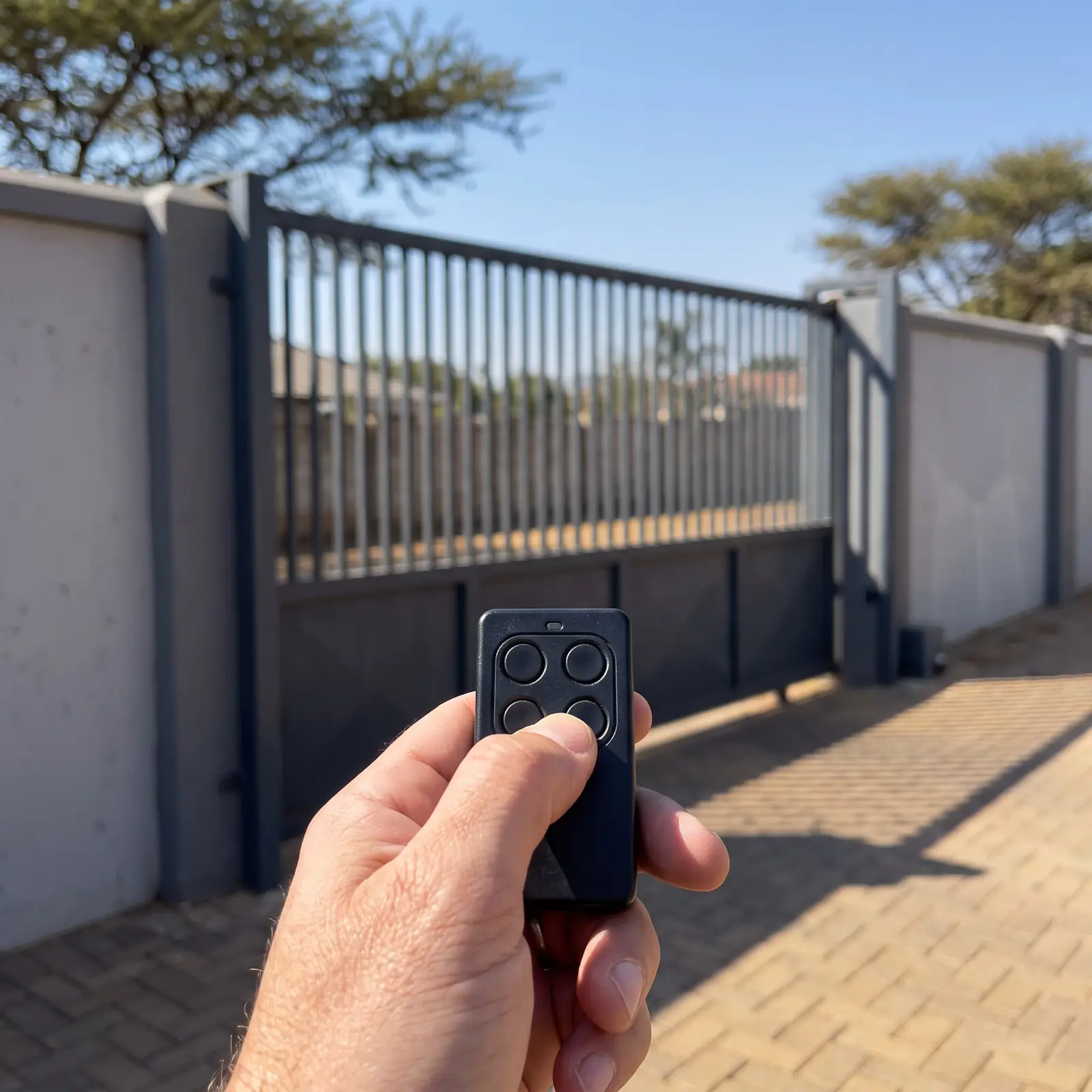
If a remote already has a button learnt to the light function, it can open learn mode from anywhere in range:
- Press and hold that light button for about 5 seconds. The courtesy light flashes and the display shows ru.
- Use + and − on the motor-head to change the function if you need to, or leave it on ru for a normal open-close button.
- Press and hold the new remote's button until the light stops flashing and the beeps confirm.
The display and buttons are still needed to choose a function other than run, which is why this suits adding a spare car remote.
What each button can do
| Code | Function | In use |
|---|---|---|
| ru | Run | Open, stop, close. A press while it's moving stops it; the next press reverses it |
| li | Light | A press switches the courtesy light on or off (it times out after 2 minutes); held, it opens learn mode |
| ho | Holiday lockout | Held 3 seconds: one flash and one beep, and every other remote and input is locked out |
| ao | Autoclose override | Held 3 seconds with the door closed: quick flashes and beeps, then the door opens and stays open until run is pressed |
| bu | All buttons | Learns a four-button remote in one go: button 1 run, 2 light, 3 lock, 4 autoclose override |
| oo | Open only | Opens from any position; if it was closing, it stops and reopens |
| co | Close only | Closes from any position; if it was opening, it stops and closes |
Holiday lockout in practice: while it's on, any other button gets one beep and three flashes and does nothing. Pressing a lockout button again switches it off with two beeps and two flashes. When the door reaches closed, the light stays on and times out as normal.
Open only and close only are handy on a wall switch by a side door: a close-only button can't open the garage by accident, and an open-only button in the car can't bring the door down on it.
The wireless wall switch
The four-button wireless wall switch comes in the T12 kits of both the SDO4 and SDO4 SMART. Its buttons are numbered 1 to 4 and can be learnt in any arrangement, so one switch can run both doors of a double garage, two buttons each. On the original SDO4 it's learnt like a remote; on the SMART, in MyCentsys Pro under Remotes.
Centurion's rules for fitting it: in sight of the garage door, a reasonable distance from moving parts, at least 1.5 m above the ground, with the entrapment warning label stuck beside it. It can be screwed to the wall (two 6 mm holes with plugs) or hooked on so it lifts off; the battery goes in before the front cover. Handle the board with care when the switch is open.
Deleting remotes and starting again
The original SDO4 has one delete: everything.
- With the display showing a single dot, press the red Learn button once. The display shows how many remotes are stored.
- Press and hold the green Confirm button until the light flashes and the display shows dL.
Every remote and the wall switch are now gone, and the ones you're keeping must be learnt again. It's the right move when a remote is lost or stolen, because there's no way to remove just one. A factory reset, by contrast, clears the limits and settings but keeps the remotes, so it won't lock out a lost one.
When a remote won't learn
- Nothing happens when you hold the button: the remote's battery, or you're out of the 10-second window; press Learn again.
- The beeps don't match the function you wanted: check the display code before you hold the button; delete and start again if needed.
- The button won't take: it's already learnt to another function.
- Every remote gets one beep and three flashes: holiday lockout is on; switch it off with a lockout button.
- The memory is full: 20 remotes is the limit; delete all and learn the ones still in use.
We program SDO4 and SDO4 SMART remotes and wall switches, supply Centurion remotes, and repair the motors. All our spare parts are genuine, and every repair carries our six-month guarantee on our repairs. Your exact price is set in a free quote before any work starts. No call-out fee when we do the work. If no work is done, a R650 call-out fee applies.
- Centurion SDO4 installation manual: the original SDO4, section 9
- Centurion SDO4 SMART installation manual: the SDO4 SMART and its wall switch
Gate remotes for Centurion motors are on Centurion remote programming.
Questions
SDO4 remote questions
How do I program a Centurion SD04 smart remote?
On an SDO4 SMART, remotes and the wall switch are added in the MyCentsys Pro app under Remotes, connected over Bluetooth near the motor. On the original SDO4, press Learn, choose the function with + and −, and hold the remote's button about 5 seconds. See both.
Book a technician
Get a garage door quote
Job card
We WhatsApp or call you back. Fields marked (required) are needed.