Manual · Centurion Vector2
Centurion Vector manual: Vector2 setup, remotes, status lights and beeps
The Centurion Vector2 is a 12 V linear swing gate motor, an arm on each leaf run from one controller with a graphic LCD screen and its own buttons. This is its manual in plain English: the models, how the controller is set up, how remotes are added and removed, and what its lights, screen and beeps are telling you.
Six-month guarantee on our repairs
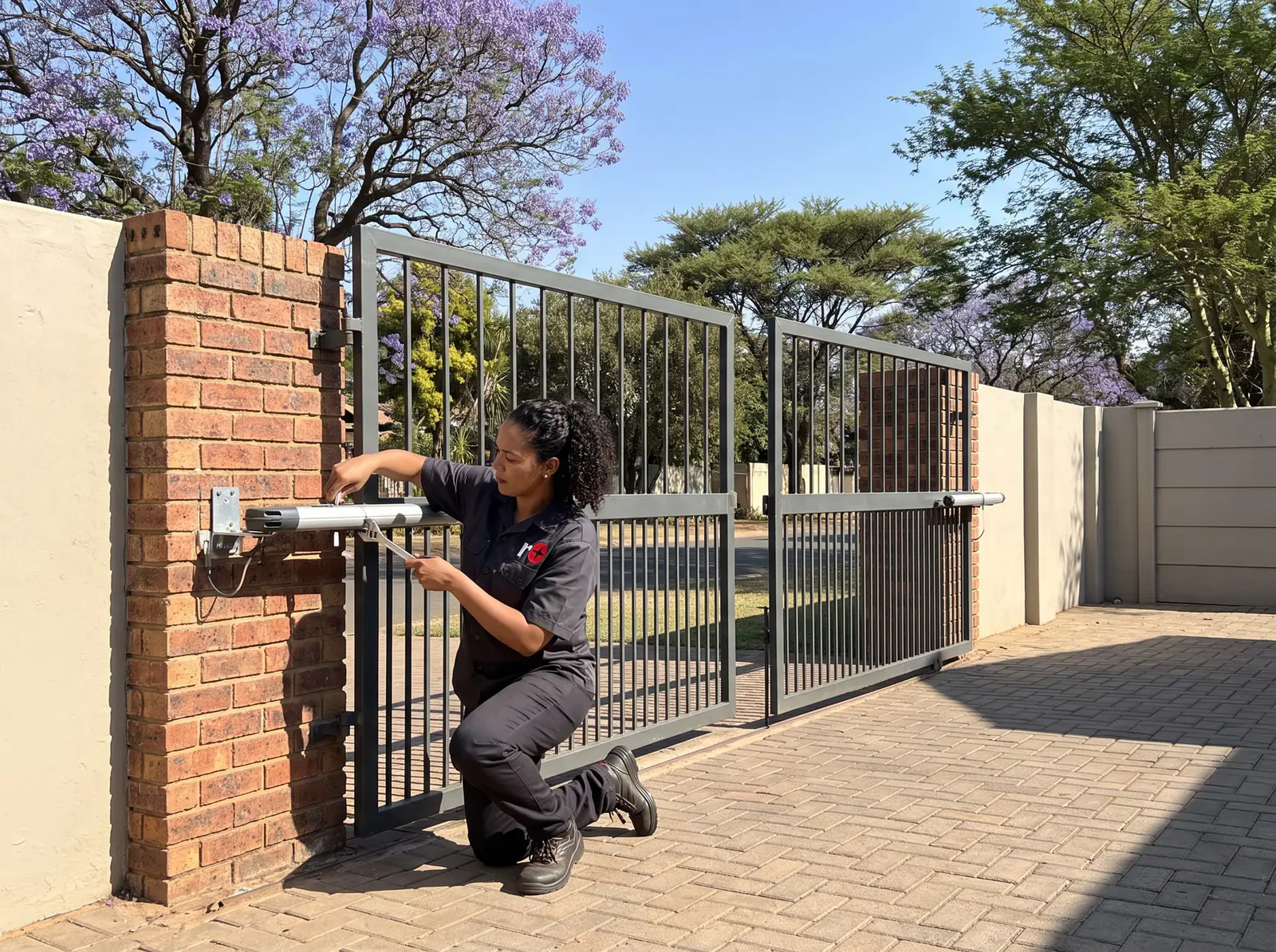
Vector2 400 and 500 specifications
| Vector2 400 | Vector2 500 | |
|---|---|---|
| Stroke | 400 mm | 500 mm |
| Typical opening time, full stroke | Under 14 seconds | Under 17 seconds |
| Arm speed | 27 mm a second | 27 mm a second |
| Push force | Up to 250 kgf | Up to 250 kgf |
| Motor and battery | 12 V DC, 7 Ah battery | 12 V DC, 7 Ah battery |
| Operations in a power cut (double kit, no beams) | 70 over half a day, 58 over a full day | 70 over half a day, 58 over a full day |
| Weather rating, operator | IP54 | IP54 |
Each kit came with one of two chargers, and the choice sets how hard the gate can be worked:
| Domestic (CP84E) | Light-industrial (CP84SM) | |
|---|---|---|
| Charging current | 800 mA | 2 A |
| Mains supply | 220 to 240 V | 90 to 240 V |
| Operations a day | 100 | 250 |
| Duty cycle, mains present | 25% | 50% |
So a domestic Vector2 on a busy complex gate is being worked beyond what Centurion allows it. The leaf limits, opening-angle method and wind tables are the same as the Vantage's, and are explained on the Centurion Vantage manual: in short, the 400 takes up to 500 kg and the 500 up to 750 kg on a leaf up to 2.5 m opening to 90°, and the longer leaves in its tables need an electric lock to hold them closed.
The controller: a screen and its buttons
The Vector2's control card sits in a separate control box on the wall, with the charger and battery. Its graphic LCD screen walks the installer through every step, and its navigation buttons are deliberately unmarked, because the screen shows what each one does at each step. Holding the setup button for three seconds enters Setup Mode; outside it, the round button is a test button that runs the gate.
Centurion's list of what the controller does:
- One-button automatic limit setup for single and double gates
- Separate safety beam inputs for the opening and closing directions
- Speed control that keeps the gate steady on a slope or in the wind
- Adjustable run profiles: speeds, ramp-up and ramp-down distances, crawl distance and a torque limit
- Auto-close with an override, a pedestrian opening with its own auto-close, a free-exit input and positive close
- Standard, Condominium and Reversing modes
- A gate lock output up to 2 A, holiday lockout, a pillar light and a status light output
- Leaf delay, so one leaf can open first and close last, for gates with an overlapping lip
- A built-in receiver for Centurion code-hopping remotes, added and deleted one by one
The same controller can run a Vantage or a Vert-X arm, so its General Settings menu asks which operator is fitted. On a Vector2 it must be set to VECTOR, shown as VC in the corner of the screen.
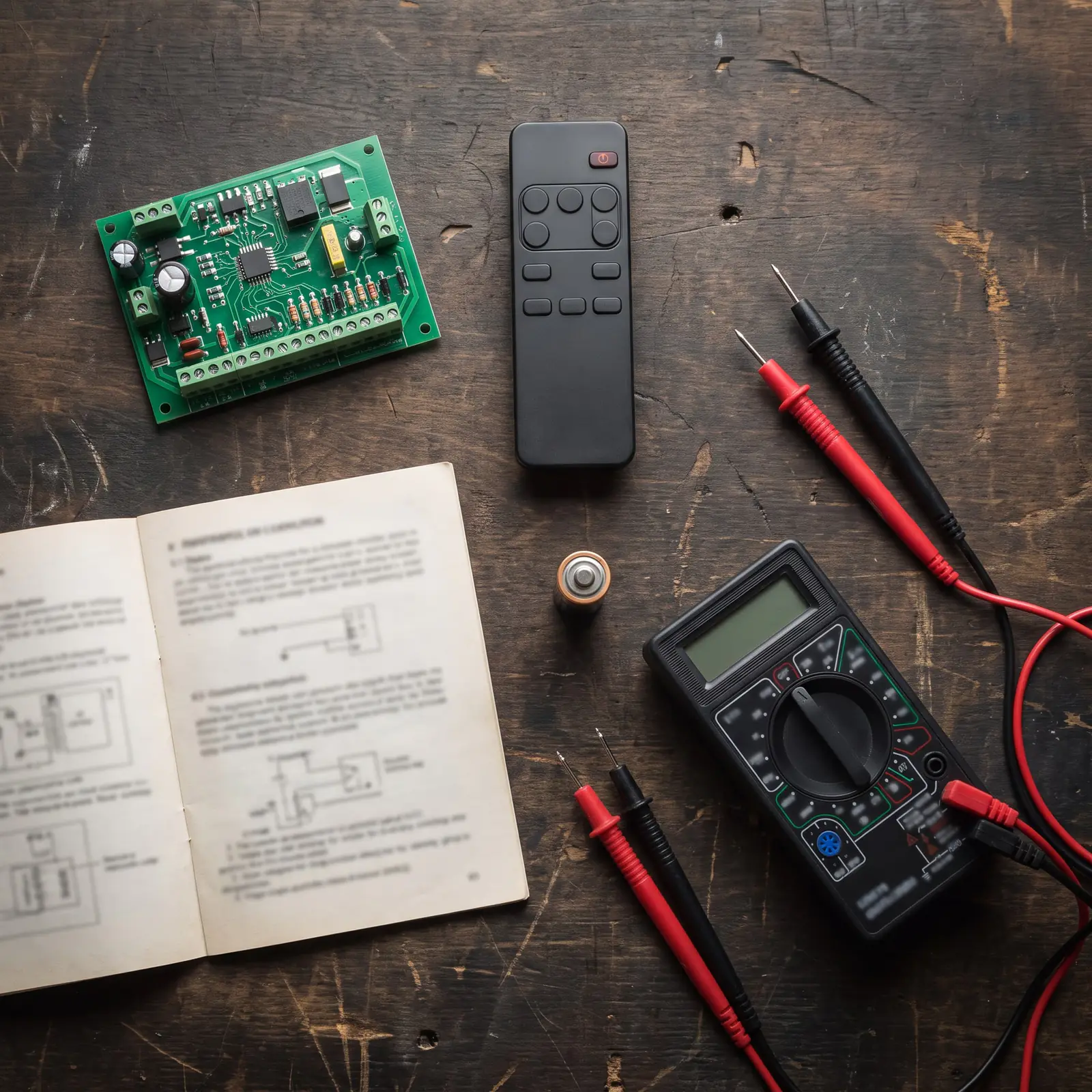
Setting the limits
The limits rely on the origin clamp on each arm, which is set during installation: the arm is unlocked, the gate is opened to its fully open position, and the clamp is slid along the actuator tube right up to the operator and tightened with an Allen key. With that done, Centurion's setup runs like this:
- With the wiring done, check the charger and battery are connected to the controller, with the battery the right way round, then switch on the mains at the isolator.
- For a gate that opens inward, start with it fully closed and the operator locked. For one that opens outward, start with it fully open and the operator locked.
- A controller powered up straight from the factory first asks for an operating profile: choose ZA for South Africa. It then goes into the limit setup on its own.
- Follow the instructions on the screen to finish.
- To run the setup again later, hold the setup button for three seconds, choose the Limits menu, and make sure VECTOR is selected when asked for the operator.
If the setup won't complete, check that the origin clamp hasn't slipped, that each arm still has one or two turns to spare when its leaf is closed (Centurion's installation check), and that the gate swings freely.
Factory settings on a South African controller
Centurion's ZA profile sets every feature to a default that suits local installations, and the controller shows the current setting whenever a feature is opened. The ones people ask about:
| Setting | Default | Range |
|---|---|---|
| Auto-close | Off; 15 seconds once switched on | Up to 4 minutes |
| Auto-close override | 3 seconds | 2 to 15 seconds |
| Mode | Standard | Standard, Reversing, Condominium |
| Collision force, each motor and direction | Level 3 | Levels 1 to 6 |
| Collisions before shutdown | 4 | 1 to 255 |
| Pedestrian opening | 30% of full opening | 10% to 100% |
| Pedestrian auto-close | 5 seconds | Up to 240 seconds |
| Leaf delay | Off; 10 mm of arm travel once on | 3 to 250 mm |
| Courtesy light | 2 minutes | |
| Torque limit | 11 A | 4 to 15 A |
Collision force has five working levels. A sixth switches collision sensing off altogether, so the motor pushes until it stalls, and Centurion says that level should only ever be used with extra safety measures such as safety beams. A gate that has been "fixed" by turning the force to maximum is a gate with its safety turned off.
The Reset Options menu has three resets: Factory Defaults puts every setting back but keeps the remotes and the limits; Delete All Remotes clears the remotes and nothing else; Reset All goes back to the factory settings and also clears every remote and time period.
Adding and deleting remotes
The Vector2's built-in receiver learns up to 64 Centurion code-hopping remotes, each with up to four buttons. Every remote it learns gets its own ID number, and Centurion's advice is to write down each ID and who it was given to, because that is what makes it possible to remove one remote later without having it in hand.
In the Remote Controls menu (menu 11):
- Add remotes: any button can be set to trigger the gate, open it for pedestrians, act as free-exit, switch holiday lockout or work the pillar light.
- Delete by ID: removes a lost or stolen remote using its ID. The remote isn't needed.
- Delete button: clears one button's job, such as holiday lockout, and leaves the rest of that remote alone. The remote is needed.
- Delete by button: removes a remote you have in hand, every button of it.
- Delete all remotes: clears the lot.
- Edit remote button: changes what a button does, for example from a full opening to a pedestrian one.
- Lock the menu: once locked, the menu opens only when a button of a remote already in the system is pressed, so nobody can add a remote of their own.
A shift-button system lets a four-button remote do six jobs: one button is held while another is pressed. It needs both hands, which is why it suits holiday lockout. If an external receiver is used instead, the onboard receiver is switched off in the same menu.

What the status light and the screen tell you
The controller's status output drives an indicator light, often fitted by the intercom so the gate can be seen from the house:
| Light | Pattern | What it means | Buzzer | 0 to 2 seconds |
|---|---|---|---|---|
| Off | The gate is closed. | None | ||
| On, steady | The gate is open. | None | ||
| Slow flash | The gate is opening. | None | ||
| Fast flash | The gate is closing. | None | ||
| 1 flash every 2 seconds | The pillar light has been switched on permanently. | None | ||
| 2 flashes every 2 seconds | No mains: the motor is running on its battery. | Two beeps now and then, for 30 seconds | ||
| 3 flashes every 2 seconds | The battery is low. | Three beeps now and then, for 30 seconds | ||
| 4 flashes every 2 seconds | Collision shutdown: the gate hit something too many times before closing, and waits for the next valid signal. | None |
The screen icons and the beeps
On the LCD, the battery icon shows four bars when full, two at half, and flashes empty when it's flat. The plug icon is solid while mains is present and the battery is charging, and hollow and flashing when there's no mains. The screen also shows the auto-close countdown (OVR when it has been overridden), the pillar light time, which remote input has just been received, and the gate's status.
| What you hear | What it means | Does the gate still work? |
|---|---|---|
| A continuous tone for 30 seconds | Break-in alarm | Not applicable |
| A continuous tone until the beams are clear | Ambush alarm: a beam held broken | Not applicable |
| 3 beeps now and then for 30 seconds | Battery low | Yes |
| Beeping until it's cleared | Multiple collisions | No, until a valid signal |
| 5 beeps now and then for 30 seconds | A hardware fault: the accessory supply is overloaded, or the safety beams have failed | No, it needs a technician |
| 1 beep now and then for 30 seconds | Holiday lockout, emergency stop, or a beam broken | No |
| 3 short beeps for 5 seconds | No limits set | No, until the setup is run |
| 2 beeps now and then for 30 seconds | Mains failure | Yes |
On the board itself, Safe CLS and Safe OPN stay on while the closing and opening beams are clear, and LCK/STP while the system is ready to run. TRG, PED, FRX and LIT light only while their signal is present, and the LED light follows the gate: on when open, off when closed.
Opening a Vector2 by hand
Each arm releases with its own key: unlock the operator, and the leaf swings by hand. Vector2 keys are specific to each operator, and Centurion asks for the key numbers to be recorded, so a double gate has two keys that aren't interchangeable. Lock the arms again before the gate is used under power: Centurion's setup steps always start with the operators locked. Our guide to opening a gate by hand covers the rest, including a lost key.
Common Vector2 faults
- One arm stutters, stops or behaves erratically. Centurion warns that a sharp bend in an arm's cable, or a loop smaller than 350 mm where it leaves the operator, fatigues the cable until the arm misbehaves or stops. It recommends a junction box beside each operator for that reason.
- Mains failure beeps with the power on. A tripped isolator or breaker, or a charger fault. The mains to the control box is a job for a registered electrician.
- Battery low on a busy gate. A 7 Ah battery near the end of its life, or a domestic charger on a gate doing more than 100 runs a day.
- The gate stops and won't go, beeping steadily. Multiple collisions: a stiff hinge, a dropped leaf, wind on a solid gate, or an arm out of stroke. One valid signal clears it, but the cause stays until it's fixed.
- No limits set, three short beeps. The controller has lost or never had its limits: run the setup again.
- A remote does nothing. Check its battery, then whether the onboard receiver has been switched off in favour of an external one, or the remote deleted.
We repair Vector2 arms, control cards, chargers and cabling, set up limits and remotes, and fit beams, locks and junction boxes. All our spare parts are genuine, and every repair carries our six-month guarantee on our repairs. Where a Vector2 is beyond economical repair, the Vantage SMART has the same strokes, push force and leaf limits. Your exact price is set in a free quote before any work starts. No call-out fee when we do the work. If no work is done, a R650 call-out fee applies.
Centurion's PDF
- Centurion Vector2 installation manual: specifications, installation, wiring, the menu map, factory defaults and diagnostics
Every other Centurion model is on Centurion manuals, and swing gates in general are on swing gates.
Book a technician
Get a gate motor quote
Job card
We WhatsApp or call you back. Fields marked (required) are needed.